
Certificates.
Under your control.
Create, inspect, and organize certificates in a desktop app. Your keys stay on your device.
No cloud. No account. Works offline, too.
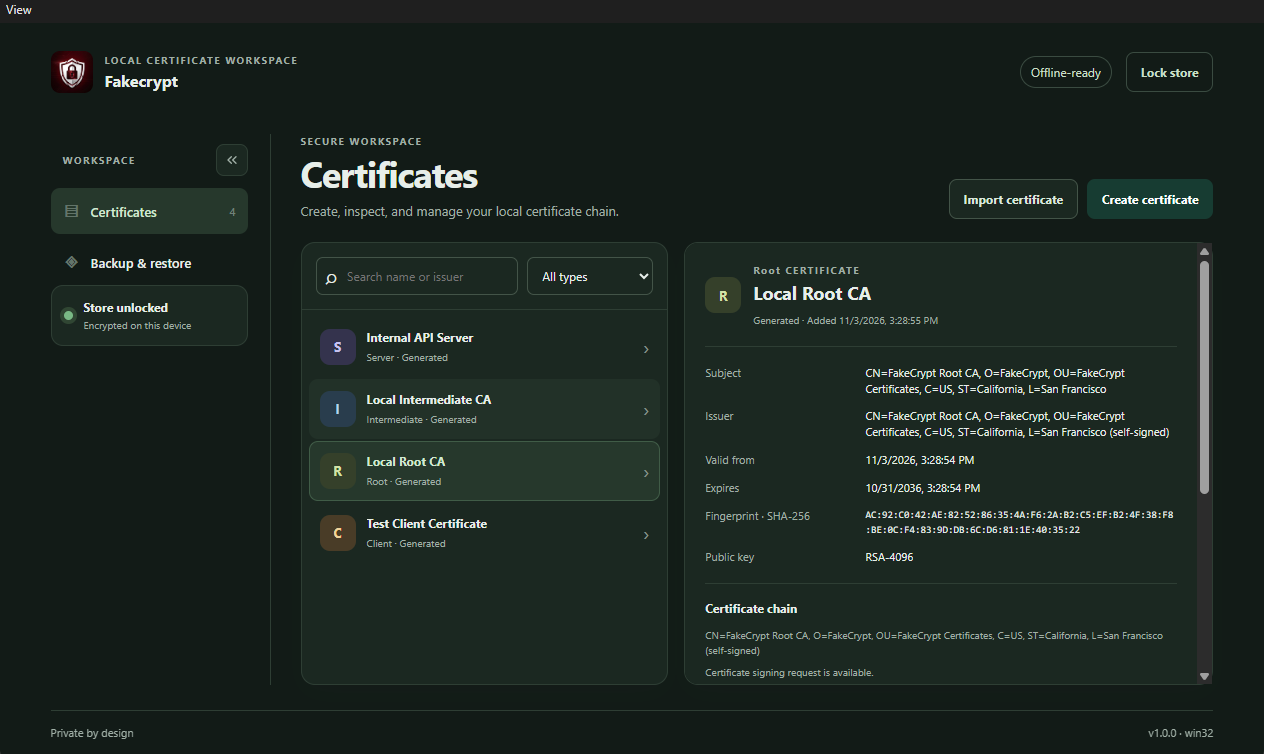
Your chain,
in view
From root authority to client certificate. See what you have, who signed it, and when it expires.
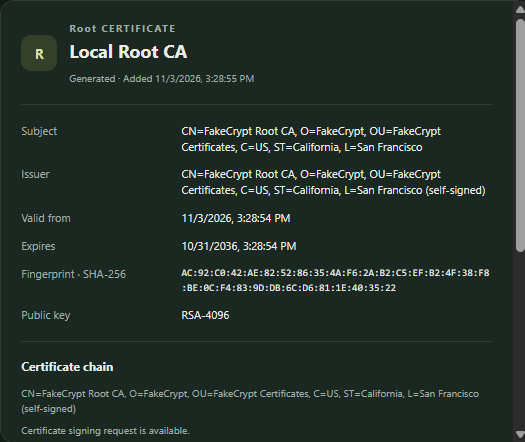
Inspect every detail
Review subjects, issuers, validity dates, fingerprints, and public keys. Your certificate chain, all in one place.
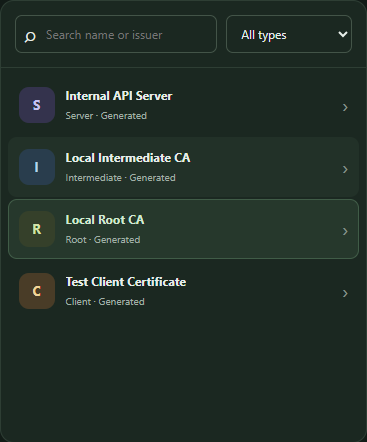
Find the right certificate
Search by name or issuer and filter by type: root, intermediate, server, or client. No more digging through files.
Export what you need
DER for a certificate, PEM and PKCS#7 for its chain, or password-protected PKCS#12 for a server or client certificate and its private key.
Your keys
stay with you
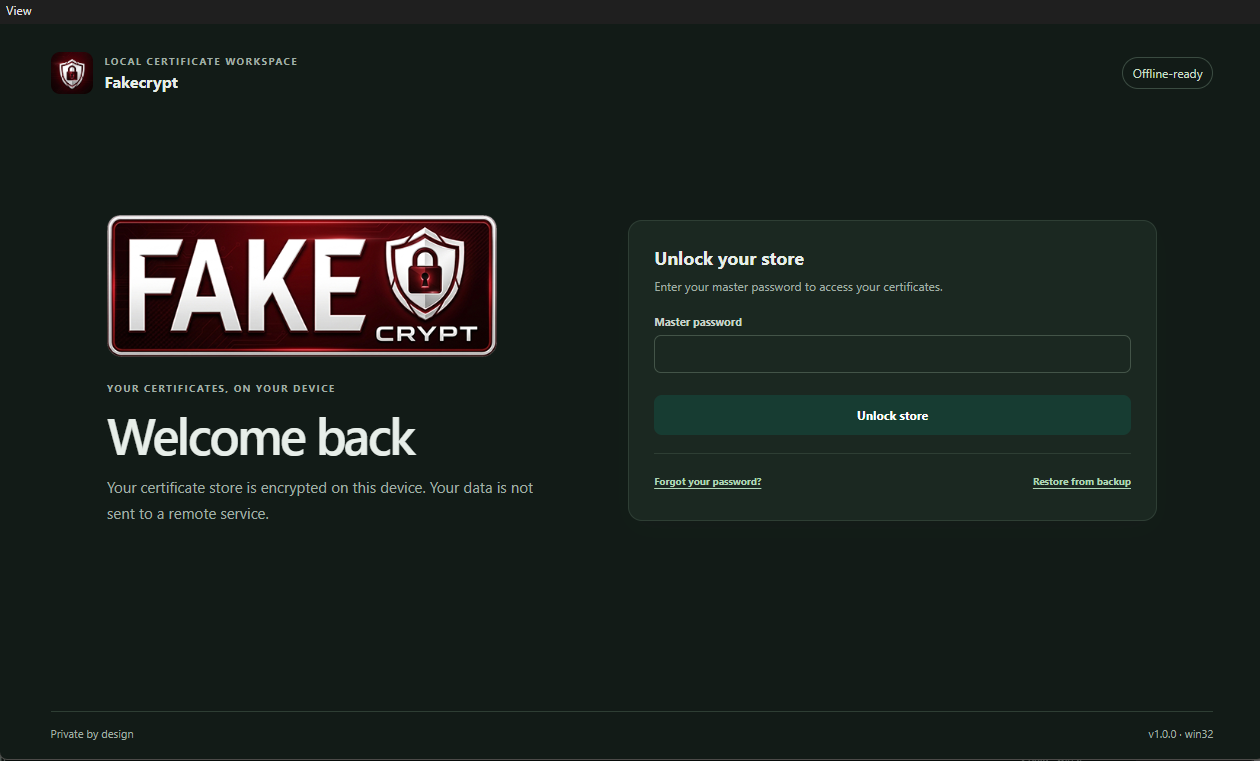
You don't need to send your certificates to a remote service to manage them.
A vault on your device
Private keys encrypted at rest, with access protected by your master password.
Recovery and backups
A recovery key and encrypted backups, protected by a password.
Work without internet
Certificate operations run locally using OpenSSL.
From root
to server
A visual workflow for development environments, internal services, and mTLS labs.
- Root CA
Create your root authority
The starting point of your trust chain. Keep its private key protected.
- Intermediate CA
Add an intermediate
Issue an intermediate authority from your root if your environment needs that separation.
- Server / Client
Issue certificates for your environment
Create server or client certificates. Add your actual DNS names and IP addresses to the SANs.
- PEM · P12 · CRT · P7B
Export and configure
Choose your format, then configure the service and client trust separately.
Fakecrypt creates and exports certificates. It does not install trusted authorities or configure your servers.
Get started
locally
Your next certificate doesn't need an account with another service.

Set up your desktop
Download Fakecrypt 1.0.0 for Windows x64 or Linux x86_64.
Have the project source?
From the electron-app folder, with Node.js and npm installed:
npm install
npm run devBefore you
begin
A little context to help you use certificates safely.
Does my data leave my device?
Certificate management happens locally. Fakecrypt does not send certificate data to a remote service and does not need an internet connection for these operations.
Can I use it for a public website?
A private CA is not trusted publicly by default. Fakecrypt is designed for environments where you manage client trust, such as development, labs, and private services. A public website needs certificates trusted by its visitors' browsers.
Can I create mTLS certificates?
Yes. You can issue client certificates with the clientAuth extended key usage and export them as password-protected PKCS#12. Configure TLS verification and authorization rules separately on the server. A certificate alone does not grant access.
Which formats can I export?
DER (.crt), PEM, and PKCS#7 (.p7b). For server or client certificates, PKCS#12 (.p12) can include the private key and available chain. You can also export a certificate signing request (CSR) when available. PEM and PKCS#7 do not include the private key.
What if I forget my password?
The app provides a recovery key to restore access. Keep it somewhere safe and create encrypted backups. If you restore a backup, you'll need the password that protects it.
Does it install or renew my certificates?
No. Fakecrypt creates, imports, inspects, and exports certificates. Installation, trust distribution, TLS configuration, and service renewals must be handled separately.